


You know the feeling. Your presentation is due soon, and you’re still staring at a blank slide, wondering where to even start. You have the ideas in your head; they’re just not in your slides yet.
What Gamma Actually Does
Making a presentation usually means writing content, then spending extra time fixing fonts, colors, and layout so every slide looks the same.
Gamma is this AI-powered presentation tool that helps you generate complete, designed slide decks from just a text prompt. You enter your topic, select a design, and get a full presentation in under a minute. After that, you can edit, polish, and export it. The whole process from a blank screen to a finished deck typically takes 15–30 minutes rather than a few hours.
What You’ll Need Before Starting
-
A Gamma account: free to sign up with an email or Google account; the free tier includes enough credits to build several decks.

-
A kinda rough outline: bullet points covering your key sections, not really a full script.
-
Get a feel for your audience: know who’s viewing the deck (students, clients, management); it shapes the tone and the depth.
Step 1: Write an Outline, Not a Script
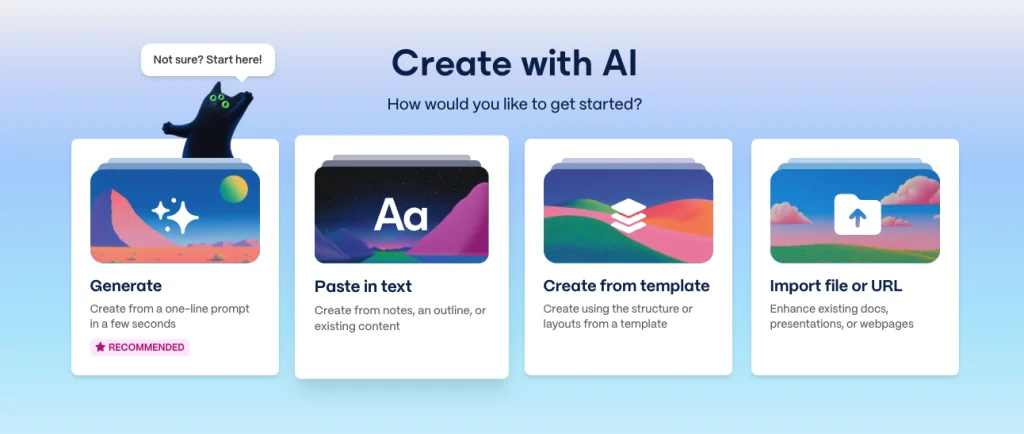
When you log into Gamma and click Create new, you’ll see a few ways to begin:
-
Generate: Gamma builds those slides basically straight from a text prompt.
-
Paste in text: you just drop your outline or notes in there, and Gamma structures them into cards.
-
Create from template: start from a pre-built layout and fill in your own content.
-
Import: you upload a PDF, a doc, or an existing slide file, and it converts it into new stuff for you.
For this tutorial, go with paste in text. Before that , list your key points as short bullets, like for “Digital Marketing Trends 2026.” It could look similar to this.
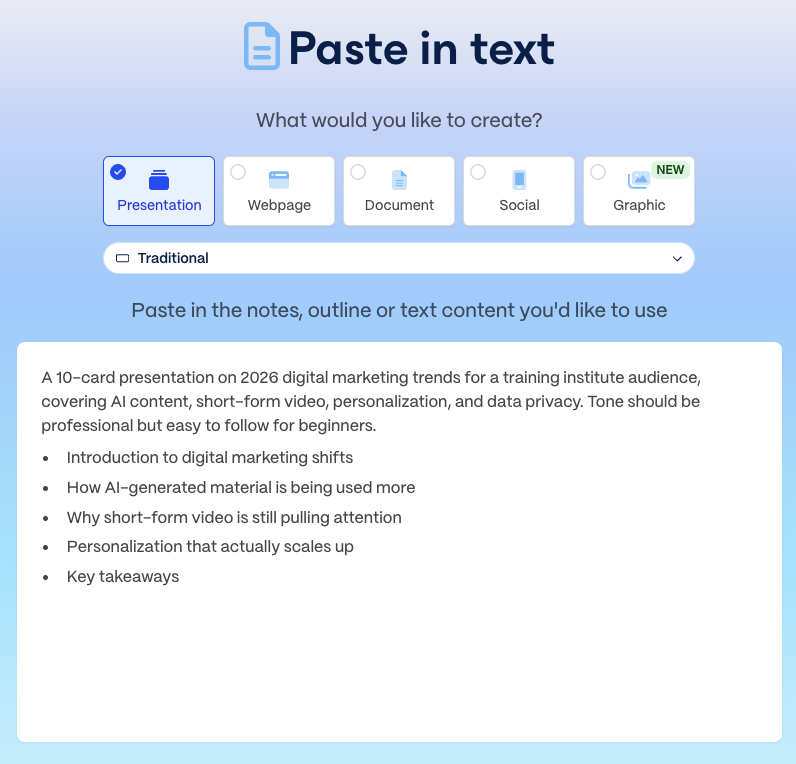
- Introduction to digital marketing shifts
- How AI-generated material is being used more
- Why short-form video is still pulling attention
- Personalized marketing campaigns that work
- Key takeaways
Give It Enough to Work With
Try to mention:
- What the deck is actually about
- Who’s going to be watching or reading it?
- Why you’re presenting it and what it needs to achieve
- Roughly how many slides you want, and how they should be structured
So instead of just typing “digital marketing trends,” you’d write something like: “A 10-card presentation on 2026 digital marketing trends for a training institute audience covering AI content, short-form video, personalization, and data privacy. Tone needs to be professional, although easy to follow for beginners.”
Gamma actually reads through all of that before it builds anything, so none of that extra context goes to waste.
Step 2: Generate the First Draft
- Paste your outline into Gamma.
- Set the number of cards you want: 10 for this tutorial.
- Add a note on audience and tone if available (e.g., formal, casual, etc.).
- Gamma will usually show a draft outline before building the full deck.
- Check this draft outline first; fixing the order or a missing point here is much faster than fixing it card by card later.
Step 3: Choose a Theme That Fits Your Purpose
Once the deck is generated, just pick a design theme.
- Clean and minimal works for corporate reports
- Bold, colorful suits creative pitches,
- Dark, professional themes fit tech-heavy topics.
That single decision bears most of the visual weight, so it’s worth pausing on it for a bit.
Step 4: Refine Card by Card
This is where a rough draft becomes something presentation-ready:
- Trim any card with too much text; slides should support your talk, not replace it.
- Use images that actually fit your industry or audience, rather than generic ones.
- Sharpen headings so each one signals what the card covers at a glance.
Step 5: Add Data Where It Strengthens the Point
If a graphic can enhance a card’s impact, include it directly rather than writing out the data in words. A single well-placed graphic often says much more than a series of bullet points.
Step 6: Review Flow, Then Export
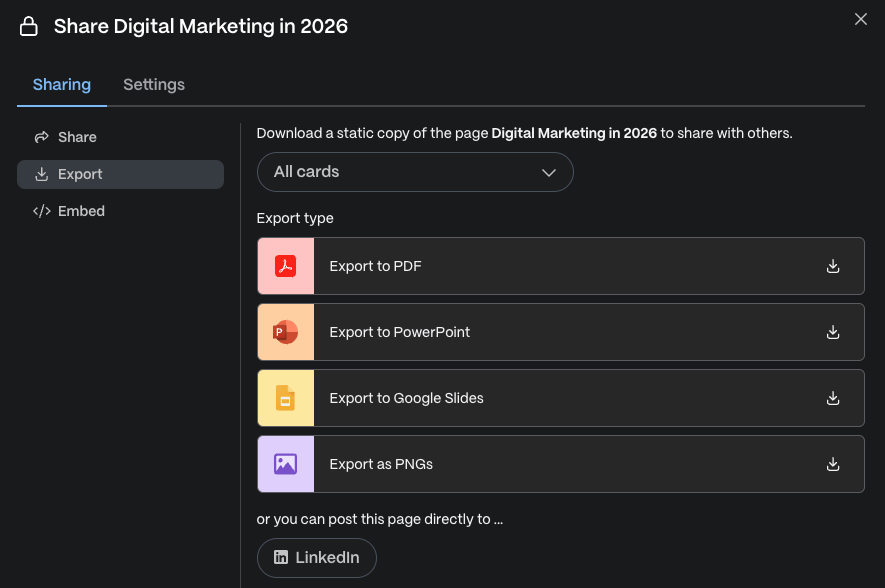
View the deck in presentation mode to ensure it flows well from beginning to end. You can export as PDF if you’d like to share it as a document, use PPTX if additional edits are required in PowerPoint, or share a link if you want something seen in the browser.
Common Mistakes to Avoid
-
Placing an entire script instead of an outline: it confuses the structure the AI is trying to build.
-
Leaving AI-generated text unchanged.
-
Using too many slides.
-
Ignoring the theme step: default themes are fine inside the system, but client-facing decks really deserve extra attention in this part here.
-
Overloading cards with text: if a card reads like a paragraph, then it needs cutting, not just a smaller font, or something like that.
Who Should Use Gamma?
-
Students building academic presentations without design experience.
-
Trainers and instructors quickly assembling course material.
-
Marketing teams producing pitch decks and campaign summaries.
-
Working professionals turning meeting notes into shareable slides fast.
Frequently Asked Questions
Q1. Is Gamma free to use?
Gamma offers a free tier with enough credits to build several presentations before needing to upgrade.
Q2. Can I export to PowerPoint?
Yes. Decks export to PPTX, PDF, or as a shareable live link, depending on how you plan to use them.
Q3. Does Gamma work from existing notes?
Q4. Is building presentations manually more effective?
For speed, yes, a structured, decent-looking deck comes together quickly. For fully custom, brand-locked templates, manual design still gives more granular control.
Key Takeaways
- Gamma automatically turns a short text outline into a fully designed deck.
- The choice of theme and the refinement pass are what separate a “generated” look from a professional one.
- Export options include PDF, PPTX, and shareable live links, depending on how the deck will be used.
- Treat the first draft as a starting point, not the final version
If you want to acquire practical knowledge about AI tools in addition to your digital and IT training, check out Broadway Infosys’s AI courses aimed at helping you stay ahead in today’s AI-driven workplace.

I had no idea you could just paste a rough outline and get a full deck in a minute—this sounds way faster than messing around with Google Slides formatting for hours. I’m definitely going to test the free tier for my next client presentation.