
IT manuals are often long, technical, and hard to review. You read a few pages, then forget key details. And when exams or certifications come up, going through hundreds of pages is really overwhelming. This is the point at which transforming your manual into a Smart Study Guide actually makes a real difference.
A Smart Study Guide is not simply a summary. It is organized methodically, searchable, and designed for quick review. It pinpoints major ideas, connects different subjects, and allows you to test your comprehension. Instead of passively reading, you actively learn.
With NotebookLM, you can convert your IT manual into a well-organized Smart Study Guide. You can upload documents, presentations, and images on the platform. Later, you may ask questions, make summaries, and even develop well-structured notes based on your content.
This approach saves time. It also improves retention. You don’t need to rewrite everything by hand. Instead, you use smart tools to shape your material into a Smart Study Guide that works for you. In this tutorial, you’ll learn how to set up NotebookLM, upload your IT manual, and turn it into a practical Smart Study Guide you can rely on.
What is NotebookLM?
NotebookLM is Google’s AI tool for research and note-taking, helping users manage, understand, and work with complex information. It helps users learn and systematize information from their personal documents. Files such as PDFs, presentations, notes, or web pages can be uploaded, and the tool studies them, allowing users to ask questions, create summaries, and highlight main ideas.
NotebookLM sets itself apart from regular AI chat tools by basing each reply on your uploaded sources. Whereas many AI chatbots provide answers based on their training data, NotebookLM relies solely on the documents you provide as its knowledge base, which guarantees accuracy, traceability, and relevance.
Getting Started with NotebookLM
Here is what you need to do to start using NotebookLM and organize your study or research materials.
Log in/Sign up for NotebookLM
Go to the NotebookLM site.
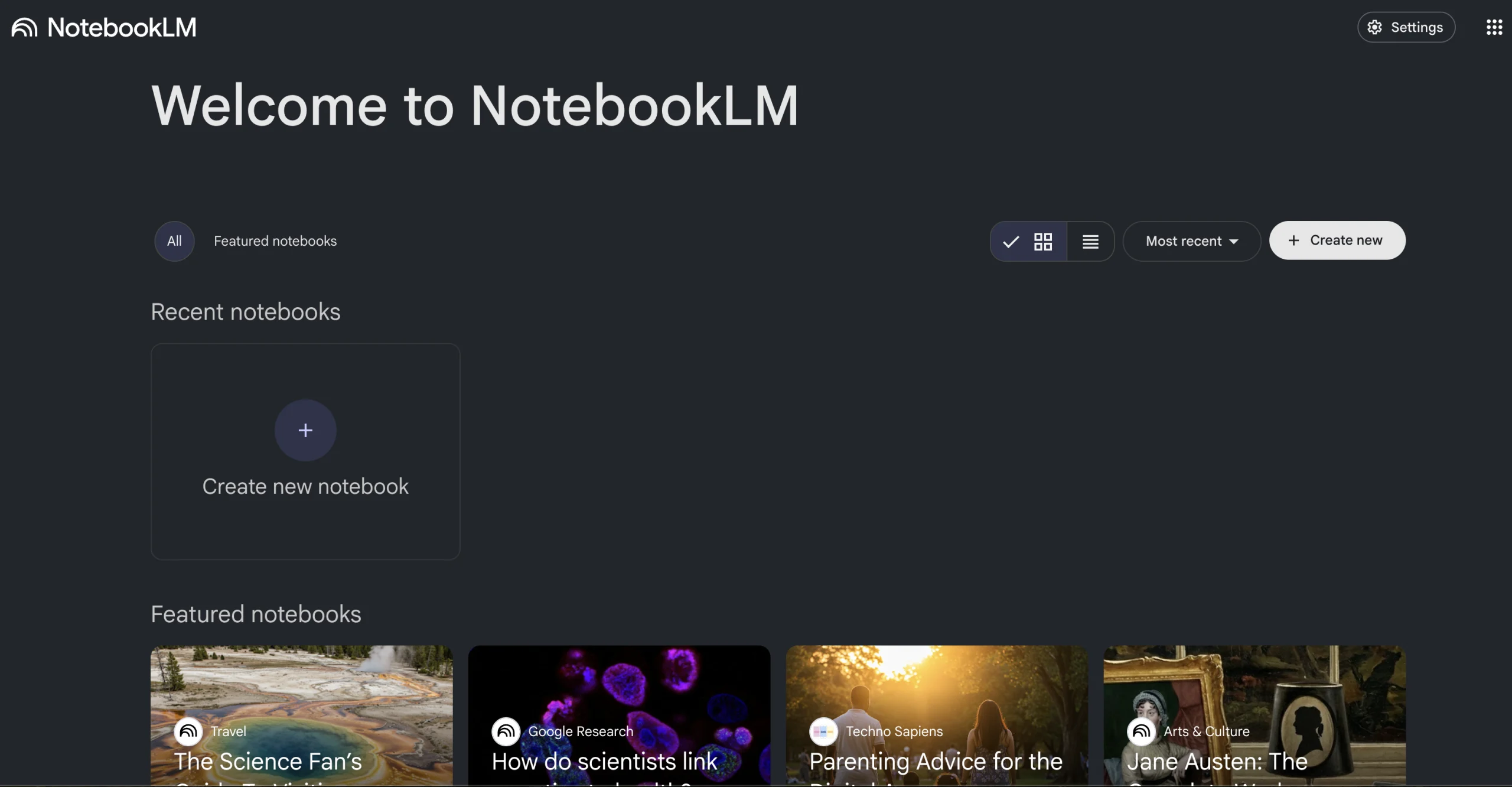
Sign in using your Google account. After you are logged in, you will see the main dashboard.
Creating your First notebook
Click “Create new” to open a new workspace.
Imagine every notebook as a project folder where you gather everything related to one topic, research area, or business goal.
Add your Source Material
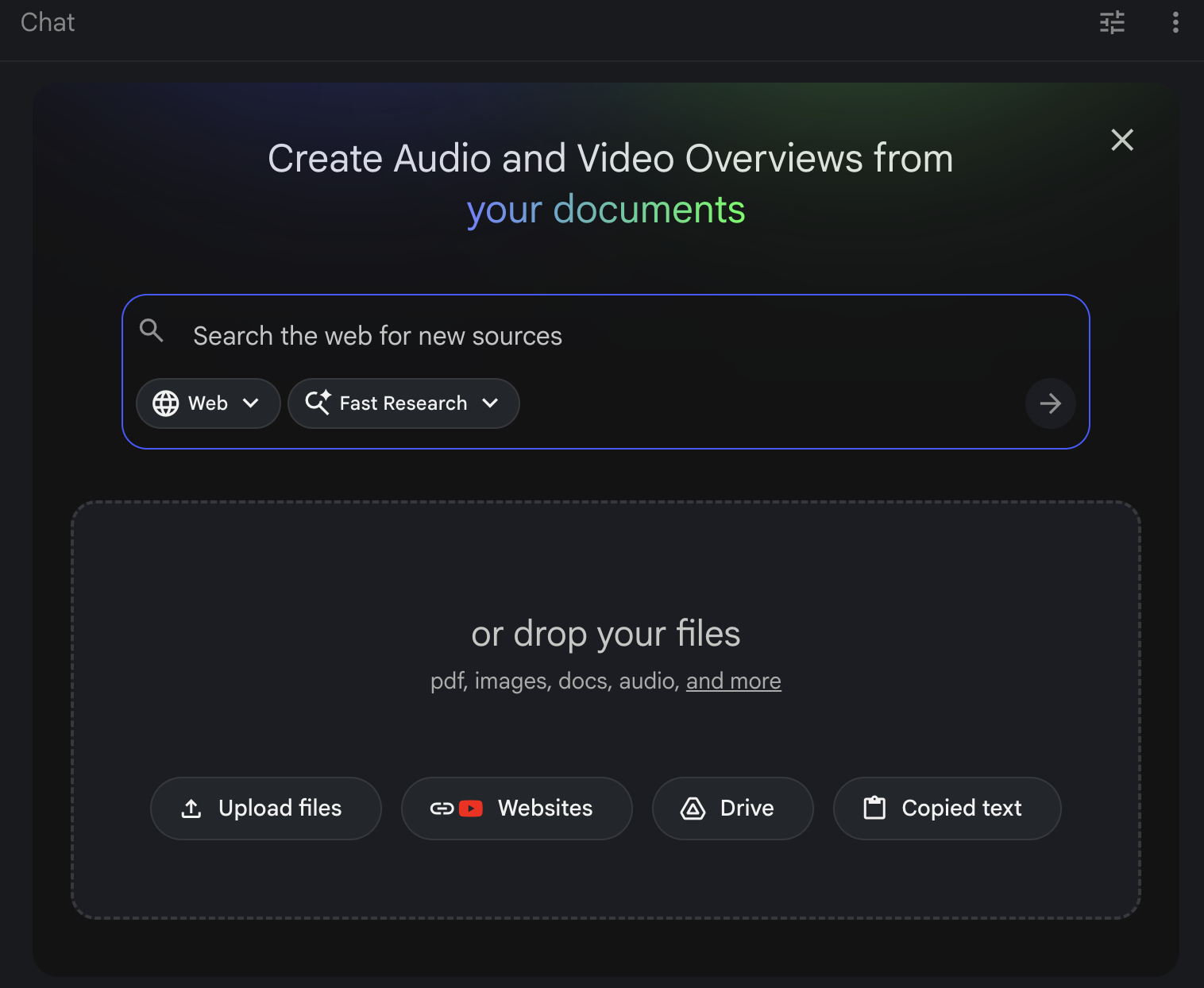
NotebookLM supports a variety of file formats, which makes it easier to adapt to different workflows. You can upload:
- Google Docs: Get the link directly from your Google Drive
- PDFs: For example, you can upload research papers, reports, or books
- Text files: Simple text documents or markdown files are supported as well
- Web articles: You can paste URLs of online resources
- Google Slides: Import presentation content
Start Exploring Your Content
You can ask questions, create summaries, and extract main points from documents after you upload your files. The system enables you to rapidly comprehend and arrange information.
Creating Presentations with NotebookLM for a Smart Study Guide
You can use NotebookLM to turn your documents and notes into structured presentation content. Follow these simple steps.
1. Upload Your Study Material
First, open your notebook and select “Add Source.” Upload the files, research papers, manuals, or notes that you would like to utilize in your presentation. NotebookLM interprets your files and creates a knowledge base for you. It can thus help you gather the main thoughts and arrange them into slides in no time.
2. Ask NotebookLM for a Presentation Outline
After you upload your sources, open the chat panel and ask the tool to create a presentation outline. The following example demonstrates how to use the system:
“Make a 10-slide presentation outline covering the major categories from this documentation.”
NotebookLM will review the content and recommend sections, slide titles, and key talking points.
3. Generate Slide Content
Then, ask NotebookLM to turn the content of each section into bullet points. Brief bullet points are ideal for presentations as they make slides simple and easy to read. AI will help you shorten the longer descriptions into brief points suitable for the slides.
4. Build Practice Quizzes
Turn the material you uploaded into a quiz. Give example uses:
“Make 10 practice questions on the content found in Chapter 3.”
NotebookLM will produce multiple-choice, true/false, and short-answer questions for you. Doing this makes your study rounds interactive and helps reinforce learning.
5. Make Flashcards for Active Recall
Flashcards are a highly effective tool for memorization and long-term retention. Request NotebookLM to create flashcards from your notes. For instance:
“Generate flashcards for key terms and definitions from this chapter.”
These digital flashcards can be used to practice active recall, a technique that improves your memory and benefits your Smart Study Guide.
After creating the flashcards, here is what you can do:
- You can easily review the cards by flipping them interactively in NotebookLM.
- With NotebookLM, you can also get explanations for the cards’ complex content.
You now have a complete active recall system that reinforces learning and helps commit critical information to memory.
So, can we only create notes, quizzes, and flashcards in NotebookLM? The answer is no! There are some more elements that can be created using the Studio panel. Let’s check them.
Exploring the Studio Panel in NotebookLM
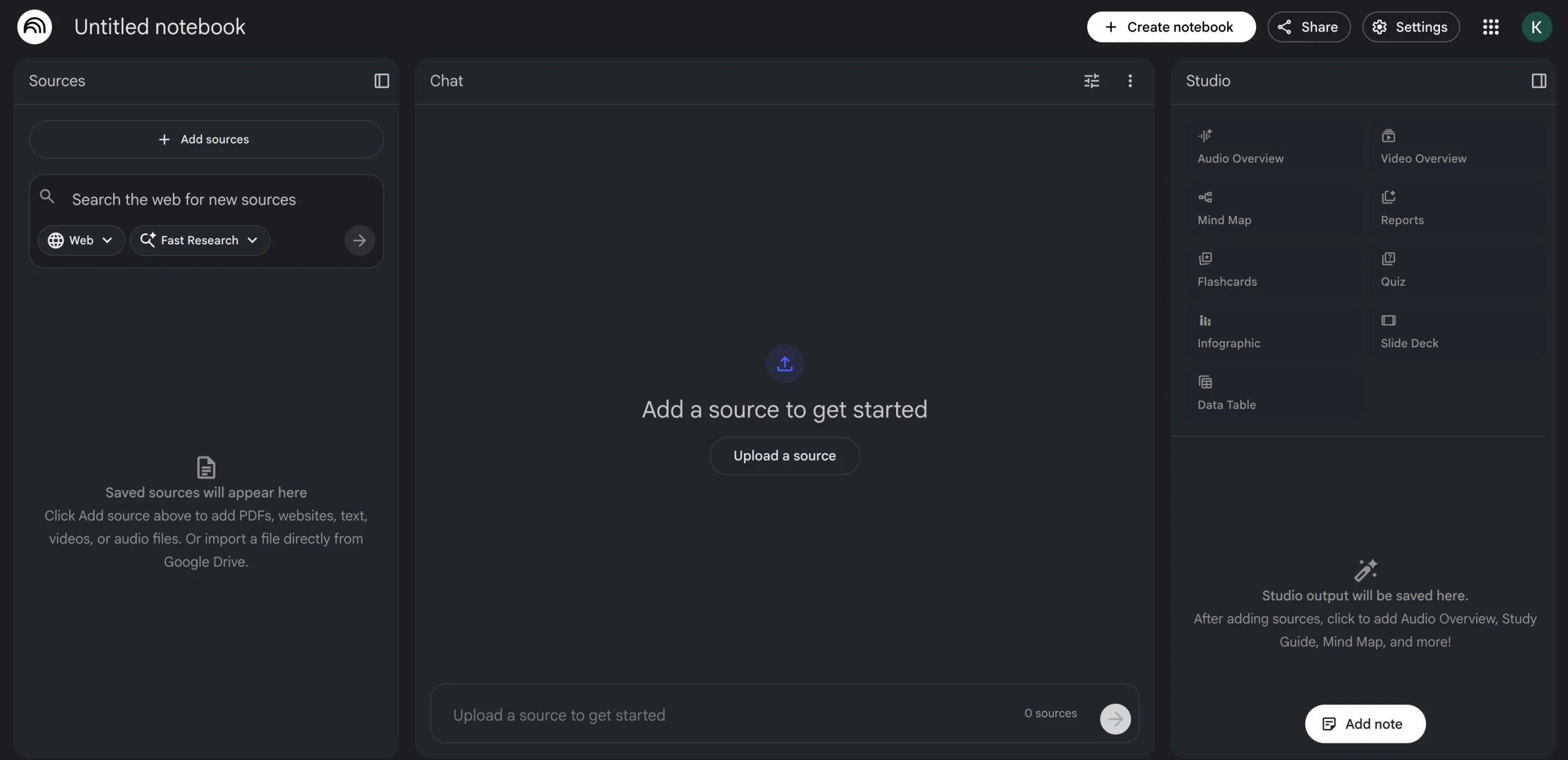
The Studio panel in NotebookLM transforms your uploaded documents into an interactive Smart Study Guide. It enables you to explore, organize, and improve your content efficiently.
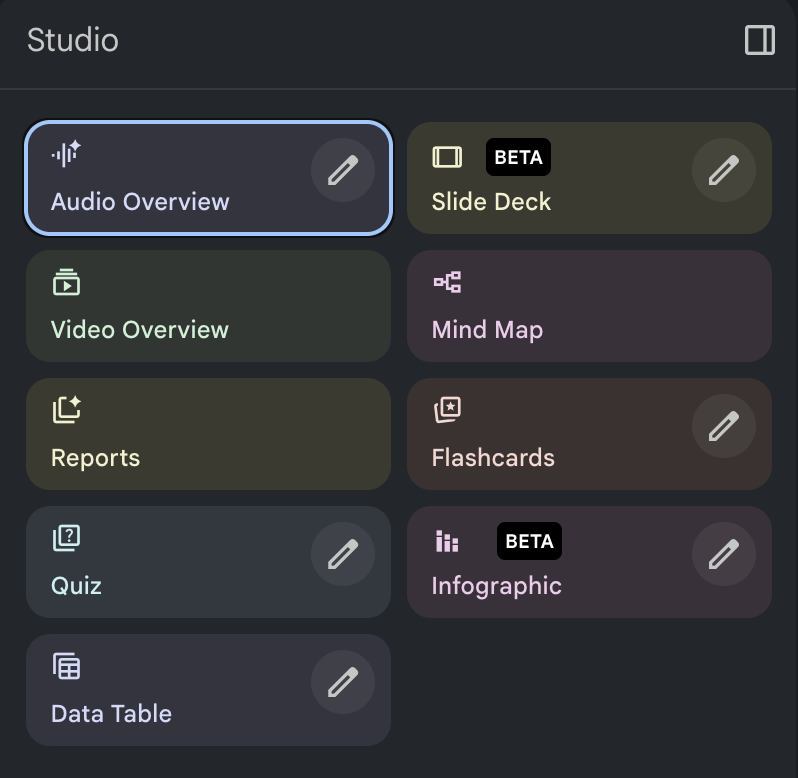
The Studio panel offers various options:
- Audio Overview: A well-liked feature of the Studio Panel is definitely the Audio Overview, which creates conversational, podcast-style summaries of your documents. It’s perfect for learning by listening, particularly when you’re visually tired.
- Slide Deck: Transforms your content into full presentation slides which include headings, bullet points, and visual elements.
- Video Overview: Creates brief visual summaries that combine text elements, graphical content, and voice, which takes time to generate but are great for quick overviews.
- Mind Map: It visualize relationships, hierarchies, and connections between different documents.
- Reports: Synthesizes all uploaded sources into a structured report with headings and citations.
- Flashcards: A set of question and answer cards is created based on key terms, definitions, and concepts to support active recall.
- Quiz: Create multiple-choice tests that check the understanding of your uploaded documents.
- Infographic: Creates graphic visual presentations of information or data to present complex information quickly and clearly.
- Data Table: The system converts structured document data into a table format, enabling easy data comparison and review.
Best practices for using NotebookLM
With proper use, NotebookLM can help you transform a jumbled mess of information into an easy-to-follow and smart study guide. Below are some tips to help you do even better.
1. Experiment with Your Recent Documents
Start by uploading documents you already have. These could be manuals, notes, presentations, or reports. Even random files can help you learn how NotebookLM processes information.
2. Create One Main Notebook First
Start with a main notebook for holding your essential data. After that, create topic-based notebooks for specific subjects or projects. This keeps your information organized.
3. Connect Ideas from Different Sources
You can upload multiple documents relevant to the same topic. NotebookLM will actually line them all up for you and even make comparisons so you can get an idea of possible patterns, relationships, or missing parts.
4. Start with Suggested Questions
NotebookLM often suggests questions based on the sources you uploaded. Use these as a starting point to quickly explore the material.
5. Ask for Information in Different Formats
NotebookLM, through the Notebook Guide function, can transform your uploaded content into various formats, such as an FAQ, a briefing document, a timeline, a table of contents, a study guide, or the trendy Audio Overview. This latter format converts your data into a fascinating dialogue between two AI “hosts.” Requesting various formats enables you to grasp difficult subjects from different perspectives.
6. Try Creative Uses
NotebookLM can do more than just make simple summaries. It also works quite well for creative things outside the office or classroom. For example, you may request it to create presentations, study notes, quizzes, or mind maps from your documents.
7. Turn Sources into Audio Overviews
Try the Audio Overview tool that creates podcast-like summaries of your content for you. This will be very handy for catching up on your learning, whether you have your eyes closed or are multitasking.
8. Revisit Previous Chat Sessions
NotebookLM allows you to capture key points from your AI chat sessions instantly by just clicking the “save to note” button. At the end of a discussion, you may request that it extract the main points and create a single note for your notebook. This helps you easily review and build on your notes.
Final Thought
By transforming your documents into organized study materials, you can make learning much easier. With tools like NotebookLM, long manuals, reports, and presentations can quickly become a Smart Study Guide, making them easier to review and understand.
You can interact with your content through the process of uploading materials, which includes asking questions and generating summaries, and using features that include quizzes, flashcards, and audio overviews. The method improves both understanding and memory of information.
If you regularly work with large documents or technical materials, NotebookLM will help you generate study guides tailored to your educational needs, research goals, and professional growth.

Author Bio:
Kushal Shrestha is a technology & IT writer passionate about programming, web development, AI, data science, cybersecurity, digital technologies, & emerging industry trends, creating a clear, practical, and informative content to help students, professionals, and technology enthusiasts build knowledge and stay updated with the rapidly evolving IT landscape.
Finally, a solution to make those long IT manuals manageable. NotebookLM sounds like a game-changer.